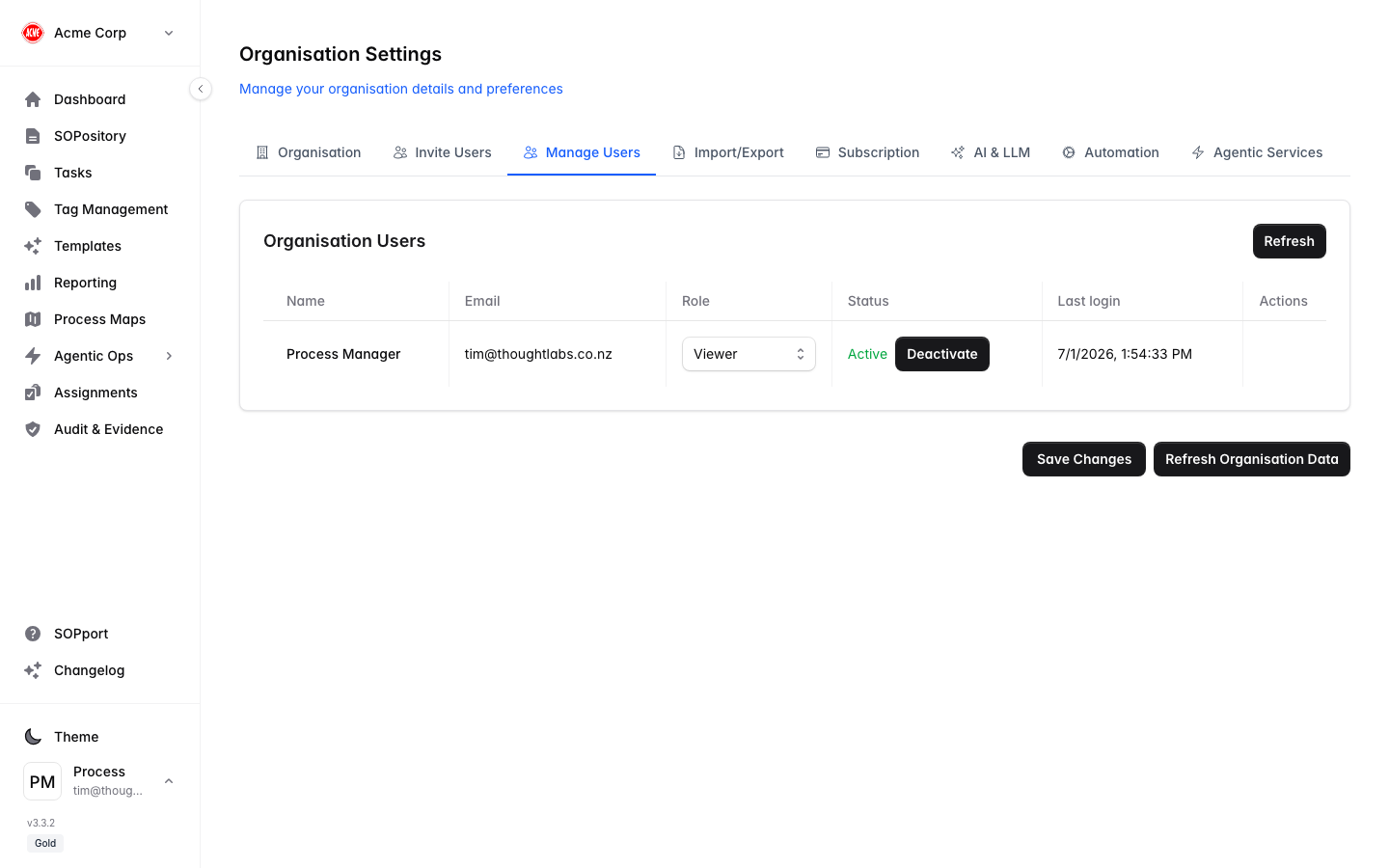
The Manage Users tab in Organisation Settings lists everyone in your organisation and lets you manage their access.
Review your users
Open Manage Users
In Organisation Settings, select the Manage Users tab.
Read the table
Each row shows the user’s name, email, role, status (Active/Inactive) and last login.
Refresh if needed
Select Refresh to reload the latest list.
Change a role
Find the user
Locate their row in the table.
Select a new role
Choose from Viewer, Member, Manager or Admin. The change takes effect immediately.
Activate or deactivate
Use the Deactivate / Activate action on a user’s row to remove or restore their access without deleting their history.
Deactivating a user immediately revokes their access. Their past executions and evidence remain intact for the audit record.
Roles at a glance
| Role | Access |
|---|
| Viewer | Read-only. |
| Member | Run and complete SOPs and tasks. |
| Manager | Member plus broader oversight. |
| Admin | Full organisation configuration. |
| Owner | Everything, including billing. |